Mobile access
Gambear uses a browser-installed PWA instead of a native app-store download
Gambear’s mobile route is a progressive web app. The site provides install guidance for both iOS and Android, and Gambear does not use a separate native app-store application.
Gambear’s mobile product is a PWA
Gambear documents a progressive web app rather than a separate native application distributed through an app store. Installation instructions are provided for both iOS and Android, so the mobile route begins in the browser and can then be added to the device for easier access.
This distinction is worth making before searching an app store. A PWA is still web-based: the browser and operating system handle the installation shell, permissions and site data. In normal use it can feel more app-like because it can be launched from the home screen, but it remains tied to the web version rather than a separate store package.
- Mobile formatPWA
- Install routeFrom the browser
- PlatformsiOS and Android guidance
- Native store appNo native store app
If you are looking for the Gambear “app,” the practical route is the browser-installed PWA rather than a separate app-store listing.
Installation starts in the browser, then moves to the home screen
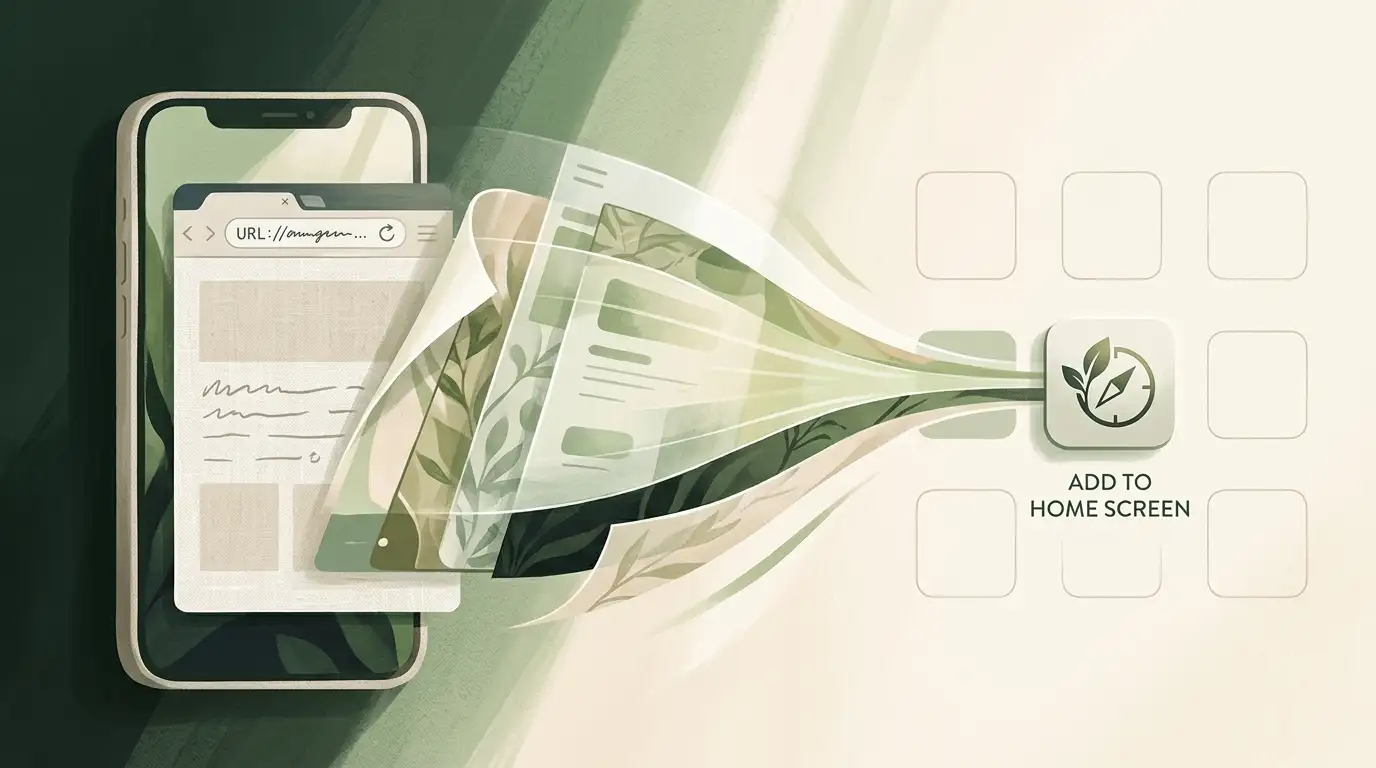
The exact menu wording differs by browser and operating-system version, but the general PWA flow is straightforward. Open the Gambear site in the browser, use the browser’s install or add-to-home-screen function, then launch the saved web app from the device home screen.
Because the installation begins from the website, it is useful to confirm you are on the intended Gambear site before saving anything to the home screen. From there, the PWA acts as a convenient entry point to the same web-based product.
- Open Gambear in your mobile browser. Start from the site rather than searching for a separate native package.
- Use the browser’s install or home-screen option. Gambear provides guidance for both iOS and Android.
- Launch the saved PWA from the device. The shortcut opens the web app in its installed presentation.
- Manage site permissions through the browser or operating system. PWA access remains connected to web permissions rather than a separate app-store permission set.
The same account can then be used to reach the main casino areas covered in the Gambear games guide and the Gambear payments guide. The PWA changes the access method, not the underlying product categories.
A PWA keeps the web product and the installed experience closely linked
The biggest practical difference is distribution. A native app is downloaded as a separate software package from a store, while a PWA is installed from the website through browser support. That affects where you look for updates, how permissions are surfaced and how the app is removed from the device.
| Area | Gambear PWA | Typical native app |
|---|---|---|
| Installation | Starts from the browser | Starts from an app store |
| Home-screen access | Can be launched from an installed shortcut | Launches from the installed app package |
| Updates | Web content is refreshed through the browser/web app model | App-package updates are normally distributed through the store |
| Permissions | Managed through browser and operating-system site controls | Managed as native-app permissions |
| Gambear setup | Gambear mobile route | No native store app |
One web product
The PWA is closely tied to the browser version, so mobile access does not depend on a separate native software branch.
Home-screen convenience
Once installed, the PWA can be opened from the device like an app shortcut instead of starting with a fresh browser search each time.
Browser-managed behavior
Site data, permissions and web-app behavior remain connected to the browser and operating system rather than an app-store package.
This model is neither automatically better nor worse than a native app. It is simply a different delivery method. The relevant question is whether browser-installed access fits how you want to use the site on a phone or tablet.
For practical troubleshooting, think from the access layer outward. If the home-screen shortcut stops behaving as expected, first check whether the site still opens normally in the browser. If it does, review the browser’s site settings and the installed shortcut before assuming that a separate application package needs an update. That sequence matches the way a PWA is delivered and avoids looking for controls that belong to native apps.
The same distinction matters when changing devices. A home-screen shortcut belongs to the device where it was installed; account access still depends on reaching the web product and signing in through the normal Gambear interface. Treat the shortcut as a convenient doorway rather than as a separate account container.
Browser and device controls remain central to updates and permissions
A PWA sits between a conventional website shortcut and a native application. The browser supplies much of the installation and storage behavior, while the operating system can still expose permission and removal controls at device level.
For everyday use, that means you should think in terms of site access rather than an independent software package. If a permission changes, a site setting is cleared or the installed shortcut is removed, the browser remains the natural place to start troubleshooting.
Install source
Browser-based Gambear access
Device entry point
Home-screen PWA shortcut after installation
Platform guidance
iOS and Android
Store package
Gambear does not use a native app-store application
When the PWA model is straightforward
- You are comfortable installing from the browser.
- You prefer the web product and home-screen access to stay closely linked.
- You know where your browser stores site permissions and data.
When the difference is easy to miss
- You expect to find Gambear by searching an app store.
- You assume every home-screen icon represents a native app package.
- You troubleshoot only through app-store settings instead of browser/site controls.
Treat the PWA as mobile web access with an installed entry point
The most useful setup check is simple: make sure you understand where the PWA came from, how it is launched and where its browser-level controls live. That prevents the common confusion of treating a web app like a separately distributed native application.
- Start installation from Gambear in the mobile browser rather than looking for a native store package.
- Use the iOS or Android guidance that matches your device.
- After installation, confirm the home-screen shortcut opens the expected Gambear web app.
- Use browser and device controls when reviewing permissions, stored site data or removal options.
- Keep gambling limits and session boundaries the same on mobile as anywhere else; a faster access path does not reduce gambling risk.
Mobile access can make it easier to move between the casino and other account areas, including crypto funding. If that is your main use case, review Gambear payment mechanics before sending assets, because network selection and irreversible transfers remain the important transaction risks regardless of device.
Screen size also changes how carefully transaction details are read. Before confirming a crypto transfer on a phone, slow the process down enough to check the asset and network separately. The convenience of a home-screen PWA should not compress the verification step, especially because blockchain transfers are generally irreversible once sent.
Use the PWA for convenience, but keep the same pre-transaction routine you would use on desktop: check the destination, asset and network before sending, and avoid making a transfer simply because mobile access makes the cashier faster to reach.
Questions about the Gambear app
Does Gambear have a mobile app?
Gambear uses a progressive web app. It is installed from the browser rather than downloaded as a separate native app-store application.
Can I install Gambear on iPhone and Android?
Gambear provides PWA installation guidance for both iOS and Android.
Is there a native Gambear app in the app stores?
Gambear does not use a native app-store application.
How is a Gambear PWA different from a normal website tab?
The PWA can be installed from the browser and launched from the home screen, while remaining tied to the web-app model for content, permissions and site data.
Read next
Gambear mobile is a browser-installed route, not a native store app
The mobile setup is clear: Gambear provides a PWA with iOS and Android installation guidance, and the installed experience stays connected to the browser-based product. Anyone searching for a separate app-store download should use the PWA model as the reference point instead.
Created by the ”Gambear” editorial team.